
Essential Troubleshoot Slow Internet Connection Tips
troubleshoot slow internet connection tips

Essential Troubleshoot Slow Internet Connection Tips

Unlock the secrets to a faster, more reliable internet connection with our comprehensive troubleshooting guide.

Boost Your Speed Now

Key Takeaways

  • ✓ Most slow internet issues are fixable at home.
  • ✓ Router placement significantly impacts Wi-Fi performance.
  • ✓ Outdated hardware can bottleneck your connection.
  • ✓ Bandwidth-heavy applications often cause perceived slowdowns.

How It Works

1
Identify the Problem's Source

Determine if the issue is with your device, Wi-Fi, modem, or ISP. This initial diagnosis saves time and effort in troubleshooting.

2
Systematic Troubleshooting

Follow a logical sequence of steps, starting with simple resets and progressing to more complex diagnostics. This ensures you cover all common culprits.

3
Optimize Your Network

Implement changes to your home network setup, such as router adjustments or channel changes, to improve signal strength and reduce interference.

4
Maintain and Prevent

Regularly check for updates, clear caches, and monitor your network to prevent future slowdowns. Proactive maintenance is key to consistent performance.

Understanding the Root Causes of Sluggish Internet

Sleek futuristic digital interface showcasing technology and precision with vibrant design elements. Photo: Egor Komarov / Pexels
A slow internet connection can feel like a digital straitjacket, hindering productivity, entertainment, and communication. Before diving into solutions, it's crucial to understand the myriad reasons why your internet might be underperforming. This isn't always about your Internet Service Provider (ISP) or the speed you're paying for; often, the culprits lie closer to home, within your own network setup or devices. One common misconception is that a 'slow' connection always means low bandwidth. While bandwidth (the maximum data transfer rate) is a factor, latency (the time it takes for data to travel) and packet loss also play significant roles in the perceived speed and responsiveness of your connection. A high-bandwidth connection with high latency will still feel sluggish, especially during real-time activities like online gaming or video conferencing. Hardware limitations are a frequent source of frustration. An old router, for instance, might not be capable of handling the speeds your ISP provides, or it might struggle to manage multiple connected devices efficiently. Similarly, an outdated network adapter in your computer or an older smartphone might not support the latest Wi-Fi standards, creating a bottleneck even if your router and internet plan are top-tier. Software issues also contribute significantly. Background applications constantly downloading updates, syncing files, or running bandwidth-intensive processes can hog your connection without your immediate awareness. Malware or viruses can also secretly consume bandwidth, sending and receiving data without your permission. Wireless interference is another major, yet often overlooked, factor, especially in densely populated areas. Your Wi-Fi signal operates on specific channels, and if your neighbors' Wi-Fi networks are using the same channels, it can lead to signal congestion and slower speeds. Household appliances like microwaves, cordless phones, and even certain baby monitors can emit radio frequencies that interfere with Wi-Fi signals. Physical obstructions, such as thick walls, floors, and large metallic objects, also degrade Wi-Fi signal strength, reducing both speed and range. Finally, the configuration of your network settings can impact performance. Incorrect DNS settings, an overloaded DHCP server on your router, or even a poorly configured VPN can introduce delays. Understanding these potential causes is the first step in effective troubleshooting. It allows you to approach the problem systematically, ruling out common issues before escalating to more complex diagnostics or contacting your ISP. By familiarizing yourself with these foundational aspects, you'll be better equipped to implement the troubleshoot slow internet connection tips that follow, transforming your digital experience from frustrating to fluid. For more detailed insights into network performance, consider exploring resources on optimizing home network security.

Initial Diagnostics: The First Steps to a Faster Connection
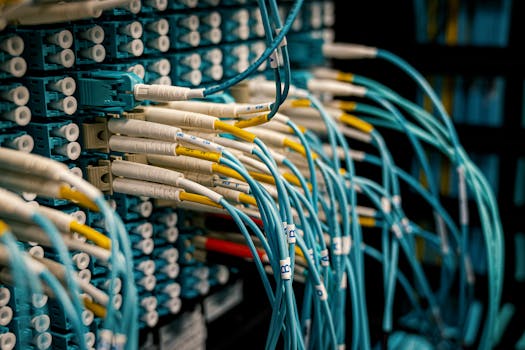
Fiber optical device with similar bright connectors with blue cables made of rubber with plastic pigtails on edges Photo: Brett Sayles / Pexels
When your internet slows to a crawl, panic often sets in, leading many to immediately call their ISP. However, a significant percentage of internet issues can be resolved with simple, methodical troubleshooting steps you can perform yourself. The key is to start with the easiest and most common fixes, gradually moving to more complex solutions. This systematic approach saves time, reduces frustration, and often identifies the problem quickly. The very first step, and arguably the most effective in many scenarios, is the classic 'reboot.' Power cycling your modem and router can clear up temporary glitches, refresh network connections, and resolve IP address conflicts. To do this correctly, unplug both your modem and router from their power sources. Wait for at least 30 seconds (some experts recommend up to a minute) to ensure all residual power is drained. Then, plug in your modem first, wait for all its indicator lights to stabilize (this usually takes a minute or two), and only then plug in your router. Allow the router to fully boot up and its lights to stabilize before testing your connection. After a reboot, the next diagnostic involves isolating the problem. Is the slow internet affecting all devices in your home, or just one? If it's only one device, the issue likely lies with that specific device. Try connecting that device directly to your router via an Ethernet cable, if possible. If the speed improves, your Wi-Fi connection to that device is the problem. If it's still slow, the device itself, its network adapter, or its software might be the culprit. If all devices are affected, the problem is more likely with your router, modem, or ISP. Run a speed test using a reliable service like Speedtest.net or Fast.com. Perform this test on multiple devices, both wirelessly and via Ethernet if possible. This provides concrete data on your actual download and upload speeds, which you can compare to the speeds you're paying for. This data is invaluable if you do need to contact your ISP. Checking for local interference is another crucial step. Wi-Fi signals can be disrupted by other electronic devices. Try temporarily turning off appliances like microwaves, cordless phones, or even smart home devices that use similar radio frequencies. Also, consider the physical placement of your router. Is it in a central location, away from walls and large metal objects? Elevating your router can often improve signal dispersion. Lastly, check for any visible damage to your cables. Frayed Ethernet cables or damaged coaxial cables can lead to signal degradation and slow speeds. Replacing a cheap, old Ethernet cable can sometimes make a surprising difference. By diligently performing these initial diagnostics, you'll gain a clearer picture of your internet's health and narrow down the potential causes of its sluggishness, setting the stage for more targeted solutions.

Optimizing Your Home Network for Peak Performance
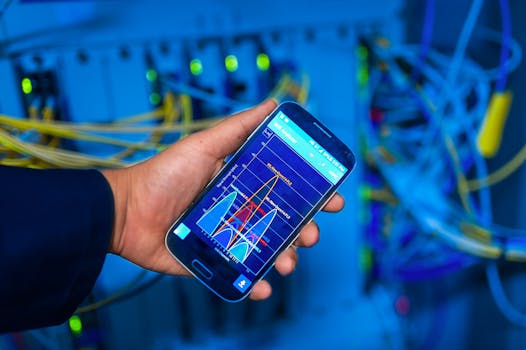
Hand holding smartphone displaying network analysis in high-tech server environment. Photo: panumas nikhomkhai / Pexels
Once you've completed the initial diagnostics and ruled out simple glitches, it's time to delve deeper into optimizing your home network. Many performance bottlenecks stem from suboptimal router settings or an overcrowded wireless environment. One of the most impactful troubleshoot slow internet connection tips is to optimize your Wi-Fi channels. Wi-Fi networks operate on specific channels, and if multiple networks in your vicinity are using the same channel, it creates congestion, leading to slower speeds and dropped connections. Most routers allow you to manually select a channel. Using a Wi-Fi analyzer app (available for smartphones and computers) can help you identify the least congested channels in your area. For 2.4 GHz networks, channels 1, 6, and 11 are non-overlapping and generally recommended. For 5 GHz networks, there are more channels, and interference is less common, but it's still worth checking. Router placement is paramount. A router tucked away in a closet or behind a television set will undoubtedly suffer from signal degradation. Position your router in a central location in your home, ideally elevated and away from physical obstructions like thick walls, large metal objects, and other electronics that can cause interference. Think of your Wi-Fi signal as a light bulb – the further away you are, and the more obstacles there are, the weaker the light becomes. Upgrading your router can also yield significant improvements. If your router is several years old, it might not support the latest Wi-Fi standards (like Wi-Fi 6, or 802.11ax), or it might lack the processing power to handle multiple devices and high-bandwidth activities. A modern router offers better range, faster speeds, and improved efficiency, especially in homes with numerous connected devices. Firmware updates for your router are often overlooked but are critical for security and performance. Router manufacturers frequently release updates to fix bugs, improve stability, and enhance security features. Check your router's administration panel (usually accessed via a web browser using its IP address) for available updates. Enabling Quality of Service (QoS) settings on your router can also make a noticeable difference, especially if multiple users or applications are competing for bandwidth. QoS allows you to prioritize certain types of traffic, ensuring that critical activities like video calls or online gaming receive preferential treatment over less time-sensitive tasks like background downloads. Finally, consider the benefits of a wired connection. While Wi-Fi offers convenience, Ethernet cables provide a faster, more stable, and more secure connection, free from wireless interference. For devices that require maximum speed and reliability, such as desktop computers, gaming consoles, and smart TVs, a wired connection is always superior. Investing in good quality Ethernet cables (Cat5e or Cat6) can provide a noticeable boost in performance for these devices. For further reading on internet infrastructure, you might find information on fiber optic internet advantages useful.

Advanced Troubleshooting and Common Pitfalls to Avoid

When basic troubleshooting doesn't cut it, it's time to delve into more advanced strategies and be mindful of common mistakes that can perpetuate slow internet woes. One critical area is managing bandwidth hogs on your network. Many applications, especially on computers and smartphones, consume significant bandwidth in the background. Check your device's task manager (Windows) or Activity Monitor (macOS) for processes that are using a lot of network resources. Similarly, on smartphones, review app usage in settings to identify data-hungry apps. **Common Pitfalls to Avoid:** * **Ignoring Router Age:** An ancient router is a bottleneck, regardless of your internet plan. Upgrade every few years. * **Overlooking Cable Quality:** Cheap or damaged Ethernet and coaxial cables can severely degrade signal quality. * **Cluttering Your Wi-Fi Channels:** Too many devices or neighboring networks on the same channel create interference. * **Disregarding Firmware Updates:** Outdated router firmware can lead to security vulnerabilities and performance issues. * **Placing Router Incorrectly:** Hiding your router in a cabinet or corner drastically reduces its effective range and speed. * **Not Using QoS:** If multiple users stream or game, not prioritizing traffic can lead to constant buffering. * **Assuming ISP is Always to Blame:** While ISPs can be at fault, many issues are resolvable within your home network. Another advanced tip involves checking for DNS server issues. Your ISP's default DNS servers might not always be the fastest. Switching to public DNS servers like Google DNS (8.8.8.8 and 8.8.4.4) or Cloudflare DNS (1.1.1.1 and 1.0.0.1) can sometimes improve browsing speed and responsiveness. You can usually change these settings within your router's administration panel or on individual devices. Furthermore, consider a full network reset. This is more drastic than a simple reboot; it involves performing a factory reset on your router. **Be warned:** this will erase all your custom settings, including your Wi-Fi name and password, so you'll need to reconfigure everything. It can, however, resolve deeply rooted configuration issues. Finally, if all else fails, it's time to contact your ISP. Be prepared with the results of your speed tests, the troubleshooting steps you've already taken, and any observations you've made (e.g., specific times the internet slows down, specific devices affected). This information will help their support staff diagnose the problem more efficiently. They can check for outages in your area, signal issues on their end, or modem problems that might require a replacement. Being an informed customer will streamline the support process and increase the likelihood of a swift resolution.

Comparison

FeatureBest OptionAlternative 1Alternative 2
Router PlacementCentral, elevated, clear line of sightAway from interferenceNear main usage area
Wi-Fi ChannelLeast congested (via analyzer)Auto-selectManually chosen 1, 6, or 11
Connection TypeEthernet (wired)5GHz Wi-Fi2.4GHz Wi-Fi
Hardware AgeCurrent (Wi-Fi 6/6E)3-5 years old5+ years old
DNS ServerCustom (Google/Cloudflare)ISP DefaultAutomatic via DHCP

What Readers Say

"These troubleshoot slow internet connection tips were a lifesaver! My internet was so slow I couldn't stream anything. After following the guide, especially the router placement advice, my speeds are consistently faster. Highly recommend!"

Sarah J. · Austin, TX

"I thought I needed a new ISP, but it turns out my old router was the problem. The guide helped me diagnose and upgrade. My downloads are now lightning fast, and video calls are finally smooth."

Mark D. · Seattle, WA

"My home network was a mess. After applying the tips on Wi-Fi channels and QoS settings, my gaming latency dropped from 80ms to 25ms. This article truly provided concrete results for my online experience."

Emily R. · Denver, CO

"The tips were mostly helpful, especially the initial diagnostics. I did have to call my ISP in the end, but I was much better prepared with the information this guide suggested gathering. A solid resource overall."

David L. · Miami, FL

"As someone who works from home and relies heavily on a stable connection, these troubleshoot slow internet connection tips were invaluable. The section on background applications was particularly insightful and helped me reclaim significant bandwidth."

Jessica M. · Chicago, IL

Frequently Asked Questions

What's the most common reason for slow internet?

The most common reasons include an overloaded Wi-Fi network, outdated router hardware, poor router placement, or background applications consuming bandwidth. ISP issues or local outages can also contribute, but often the problem is within your home network.

Will upgrading my internet plan always fix slow speeds?

Not necessarily. While a higher-speed plan provides more bandwidth, if your slow speeds are due to hardware limitations (like an old router), Wi-Fi interference, or software issues on your devices, upgrading the plan won't solve the underlying problem. It's crucial to troubleshoot your existing setup first.

How do I check my actual internet speed?

You can check your internet speed using online speed test websites like Speedtest.net or Fast.com. For the most accurate results, perform the test on a device connected directly to your router via an Ethernet cable, and ensure no other devices are actively using the internet during the test.

Is it worth buying a new router?

If your current router is more than 3-5 years old, or if you consistently experience poor Wi-Fi range and speed despite troubleshooting, investing in a new, modern router (especially one supporting Wi-Fi 6 or newer) is often a worthwhile upgrade that can significantly improve your home network's performance.

How do wired connections compare to Wi-Fi for speed?

Wired Ethernet connections are almost always faster, more stable, and more reliable than Wi-Fi. They are not subject to wireless interference, signal degradation over distance, or physical obstructions. For devices requiring maximum performance, a wired connection is superior.

Who should use these troubleshoot slow internet connection tips?

Anyone experiencing sluggish internet speeds, frequent buffering, dropped connections, or general network instability will benefit from these tips. They are designed for home users looking to diagnose and resolve common internet performance issues themselves before needing to contact their ISP.

Are there any risks to changing router settings?

While generally safe, changing advanced router settings without understanding them can potentially disrupt your network. Always note down original settings before making changes. Performing a factory reset is always an option if you accidentally misconfigure something, though it will erase all custom settings.

What's the future of home internet speed and reliability?

The future points towards even faster and more reliable connections, driven by technologies like Wi-Fi 7, 5G home internet, and widespread fiber optic deployments. These advancements promise lower latency, higher bandwidth, and better handling of numerous connected devices, making slow internet a rarer occurrence.

Don't let slow internet hold you back any longer. Empower yourself with these comprehensive troubleshoot slow internet connection tips to transform your online experience from frustrating to flawlessly fast. Start optimizing your network today and reclaim your digital freedom.

Topics: troubleshoot slow internet connection tipsfix slow internetspeed up internetinternet optimizationwifi troubleshooting
Leo List
Brampton weed
Adultwork EstrelaBet Vai de Bet R7 Bet Betão Galera Bet Rainbet Bet9ja Shop SportyBet BetKing Sisal Loto Foot Hollywoodbets YesPlay Odibets RushBet Jugabet BetWarrior BetCity MSport betPawa Fortebet