✓ SSDs offer superior speed and durability compared to HDDs, crucial for MacBook Pro users.
✓ Thunderbolt 3/4 provides the fastest connection speeds, essential for large file transfers and 4K/8K video editing.
✓ Capacity needs vary: 1TB-2TB for general use, 4TB+ for creative professionals.
✓ Bus-powered drives offer portability, while self-powered drives provide more consistent performance for demanding tasks.
How It Works
1
Identify Your Needs
Determine how much storage you need, what types of files you'll be storing, and your primary use cases (e.g., backup, video editing, gaming). This initial assessment guides your selection process.
2
Choose Drive Type & Interface
Decide between an SSD for speed or an HDD for capacity, then select the appropriate interface (Thunderbolt, USB-C, USB-A) based on your MacBook Pro's ports and performance requirements.
3
Consider Portability & Durability
If you travel frequently, look for compact, bus-powered, and rugged drives. For desktop use, prioritize performance and capacity, potentially opting for self-powered options.
4
Format and Integrate
Once you have your drive, format it correctly for macOS (APFS or HFS+), then integrate it into your workflow for backups (Time Machine), project storage, or media libraries. Enjoy your expanded storage!
Understanding Your MacBook Pro's Storage Needs and External Drive Types
Photo: Nao Triponez / Pexels
Your MacBook Pro, while powerful, often comes with limited internal storage, especially if you opted for a base model. This limitation becomes glaringly obvious for creative professionals, developers, or anyone dealing with large media files, extensive software libraries, or frequent backups. An external hard drive isn't just an accessory; it's a vital extension of your Mac's capabilities, offering increased storage, improved workflow efficiency, and robust data protection. But with a myriad of options on the market, choosing the best external hard drive for MacBook Pro users can be a daunting task. The first step is to understand the fundamental types of external drives and how they align with your specific needs.
Broadly, external drives fall into two main categories: Hard Disk Drives (HDDs) and Solid State Drives (SSDs). HDDs are the traditional workhorses, utilizing spinning platters to store data. Their primary advantage lies in their cost-effectiveness per gigabyte, making them ideal for large-scale archival storage, Time Machine backups, or storing vast media libraries where raw speed isn't the paramount concern. For instance, if you need 8TB of storage for family photos and videos, an HDD offers a far more economical solution than an SSD of equivalent capacity. However, HDDs are mechanical, making them more susceptible to physical damage from drops or impacts, and their read/write speeds are significantly slower, typically ranging from 100-200 MB/s. This speed limitation can lead to frustrating delays if you're trying to edit video directly from the drive or run demanding applications.
SSDs, on the other hand, represent the modern evolution of storage. They use flash memory, similar to the internal storage in your MacBook Pro, to store data. This absence of moving parts makes them inherently more durable and resistant to physical shock. Their most compelling advantage, however, is speed. Modern external SSDs can achieve read/write speeds upwards of 500 MB/s, with high-end Thunderbolt 3/4 SSDs pushing into the 2000-3000 MB/s range. This blazing speed is transformative for tasks like 4K/8K video editing, running virtual machines, launching large applications, or transferring massive project files. For a creative professional who regularly works with multi-gigabyte files, an external SSD is not just a luxury but a necessity for maintaining a fluid and efficient workflow. While SSDs are more expensive per gigabyte than HDDs, their performance benefits often justify the investment, especially when considering the value of your time and productivity. When considering the best storage solutions for creative professionals, SSDs consistently come out on top.
Beyond the drive type, the interface through which the drive connects to your MacBook Pro is equally crucial. Older Macs might rely on USB 2.0 or 3.0, but most modern MacBook Pros feature USB-C (which often supports USB 3.1 Gen 2 or USB 3.2 Gen 2x2) and increasingly, Thunderbolt 3 or Thunderbolt 4. Thunderbolt ports offer the highest bandwidth, supporting speeds of up to 40 Gbps (5000 MB/s theoretical), making them the gold standard for high-performance external drives. USB-C ports, while versatile, can vary in their underlying USB specification; a USB 3.1 Gen 2 port offers 10 Gbps (1250 MB/s), while USB 3.2 Gen 2x2 doubles that to 20 Gbps (2500 MB/s). Understanding these distinctions is vital, as a fast SSD connected via a slow interface will be bottlenecked and won't deliver its full potential. Always match your drive's interface capabilities with your MacBook Pro's port specifications for optimal performance. The choice between HDD and SSD, combined with the right interface, forms the bedrock of selecting the perfect external drive for your Mac.
Top Contenders: Best External Hard Drives for MacBook Pro in 2024
Photo: Avinash Kumar / Pexels
Navigating the vast market of external drives can be overwhelming, so we've narrowed down the top contenders that consistently deliver performance, reliability, and value for MacBook Pro users. Our selections consider various use cases, from professional media editing to everyday backups, ensuring there's an optimal choice for everyone. The best external hard drive for MacBook Pro isn't a one-size-fits-all answer; it depends on your specific priorities.
For those demanding the absolute fastest speeds for tasks like 4K/8K video editing, large software development projects, or running virtual machines, a Thunderbolt 3/4 external SSD is unparalleled. The **Samsung Portable SSD X5** (though slightly older, still a powerhouse) or newer, similar models from OWC or SanDisk Professional are excellent choices. These drives leverage Thunderbolt's 40Gbps bandwidth to deliver astonishing read/write speeds often exceeding 2000 MB/s. This means you can edit directly from the drive with virtually no lag, transfer entire project folders in seconds, and significantly reduce render times. They are typically compact, bus-powered, and built with robust enclosures to handle professional workflows. The primary drawback is their higher price point per terabyte, but for professionals whose livelihoods depend on speed, the investment is well worth it.
If you need a blend of speed and affordability for tasks like photo editing, large document storage, or gaming, a high-performance USB-C (USB 3.2 Gen 2) external SSD is an excellent compromise. Drives like the **Samsung T7 Shield** or the **SanDisk Extreme Portable SSD V2** are incredibly popular for good reason. They offer read/write speeds up to 1050 MB/s, which is significantly faster than any HDD and more than sufficient for most everyday and even many professional tasks. Their ruggedized designs often include IP ratings for water and dust resistance, making them ideal for users on the go. They are also bus-powered, meaning no external power adapter is needed, adding to their portability. These drives typically connect via a USB-C cable, compatible with most modern MacBook Pro ports, and often include a USB-A adapter for older devices.
For users who prioritize massive storage capacity at the lowest possible cost, perhaps for archiving, extensive Time Machine backups, or building a large media server, a traditional external HDD is still king. Drives like the **Western Digital My Passport** or the **Seagate Backup Plus Portable** offer capacities ranging from 1TB up to 5TB or even larger desktop models for 10TB+. While their speeds are limited to around 100-150 MB/s, they provide an economical solution for storing vast amounts of data that don't require constant, high-speed access. These are generally bus-powered for portability, though larger desktop HDDs will require an external power supply. They are perfect for offloading completed projects, storing an entire movie collection, or creating redundant backups of your entire system. Look for models that offer hardware encryption for added security, especially if you're storing sensitive data.
Finally, for those who require both high performance and modularity, consider an NVMe enclosure paired with a high-speed NVMe SSD. Brands like OWC (e.g., Envoy Express) or various third-party enclosures allow you to purchase an empty enclosure and install your own M.2 NVMe SSD. This gives you ultimate control over capacity and performance, often at a slightly lower total cost than pre-built Thunderbolt SSDs, while still achieving incredible speeds. This option is particularly appealing for tech-savvy users who want to customize their storage solution or upgrade components independently. Each of these categories offers compelling advantages, making the 'best' choice truly dependent on your individual workflow and budget.
Key Features to Look for: Speed, Durability, and Compatibility with macOS
Photo: Nino Souza / Pexels
When selecting the best external hard drive for MacBook Pro, it's not just about capacity and price. A sophisticated understanding of key features will ensure your investment genuinely enhances your workflow and protects your valuable data. Beyond the fundamental choice between HDD and SSD, several critical aspects demand your attention: speed, durability, compatibility, and additional functionalities.
**Speed:** This is arguably the most critical factor for MacBook Pro users, especially those engaged in demanding tasks. As discussed, the interface plays a huge role. Thunderbolt 3/4 (up to 40Gbps) offers the fastest theoretical and real-world speeds, making it ideal for professionals who need to edit directly from the drive or transfer massive files quickly. USB 3.2 Gen 2x2 (20Gbps) and USB 3.2 Gen 2 (10Gbps) are excellent mid-range options, offering significant speed improvements over older USB standards. Always check the specific USB generation, as a simple 'USB-C' label doesn't guarantee high speed. For SSDs, look for NVMe-based drives, which inherently offer faster performance than SATA-based SSDs. For HDDs, look for 7200 RPM drives over 5400 RPM for a marginal speed boost, though the difference is less pronounced than between HDD and SSD. The faster the drive, the less time you spend waiting for transfers, renders, or application loading, directly impacting your productivity.
**Durability:** Your data is precious, and an external drive that can withstand the rigors of travel or accidental bumps is invaluable. For HDDs, this is a significant concern due to their moving parts. Look for drives with robust enclosures, internal shock absorbers, or even military-grade drop protection ratings. SSDs are inherently more durable due to the absence of moving parts, but some portable SSDs go further with IP ratings (e.g., IP67 for water and dust resistance) and rubberized casings. If you frequently transport your drive or work in challenging environments, investing in a ruggedized model is a wise decision. This feature minimizes the risk of data loss from physical damage, providing peace of mind. Learning how to protect your digital assets is crucial for any Mac user.
**Compatibility with macOS:** While most drives are plug-and-play, proper formatting is essential for optimal performance and integration with macOS features like Time Machine. Drives often come pre-formatted for Windows (NTFS), which macOS can read but not write to without third-party software. For best results, reformat the drive to APFS (Apple File System) for SSDs or HFS+ (Mac OS Extended Journaled) for HDDs using Disk Utility. APFS is optimized for SSDs and offers features like snapshots and encryption, while HFS+ is a reliable choice for HDDs. Ensure the drive you choose explicitly states macOS compatibility, or at least provides clear instructions for formatting. Also, consider if the drive comes with any bundled software that might be useful for backups or encryption, and ensure that software is macOS compatible.
**Bus-Powered vs. Self-Powered:** Portable drives are typically bus-powered, meaning they draw power directly from your MacBook Pro's USB or Thunderbolt port. This is incredibly convenient for portability, as it eliminates the need for an extra power adapter. However, some higher-capacity desktop HDDs or RAID enclosures might be self-powered, requiring an external power source. While less portable, self-powered drives can sometimes offer more consistent performance for very demanding tasks or when connecting multiple drives.
**Security Features:** For sensitive data, look for drives with hardware encryption (e.g., 256-bit AES). This provides a robust layer of security that software encryption might not match, protecting your data even if the drive falls into the wrong hands. Some drives also include fingerprint readers or password protection. Considering these features ensures your data is not just stored, but stored securely.
Optimizing Your Workflow: Tips and Common Mistakes to Avoid with External Drives
Photo: Кирилл Абрамов / Pexels
Integrating an external hard drive into your MacBook Pro workflow goes beyond simply plugging it in. To truly maximize its benefits and avoid common pitfalls, it's essential to adopt best practices and understand how to optimize its use. This section will guide you through crucial tips and highlight mistakes that can hinder performance or lead to data loss.
**Tip 1: Regular Backups with Time Machine.** This cannot be stressed enough. Your external drive is an ideal candidate for your primary Time Machine backup destination. Time Machine automatically backs up your entire system, allowing you to restore files, folders, or even your entire Mac to a previous state. Dedicate a separate partition or even an entire external drive solely for Time Machine. This ensures your data is protected from internal drive failures, accidental deletions, or software corruption. Set it up once, and Time Machine works silently in the background, providing invaluable peace of mind.
**Tip 2: Optimize for Specific Tasks.** Don't treat all external drives the same. Use your fastest SSD (Thunderbolt or high-speed USB-C) for active projects like video editing, graphic design, or running virtual machines. Its speed will directly impact your real-time performance. Reserve larger, slower HDDs for archival storage, long-term media libraries, or less frequently accessed backups. Segregating your data based on access frequency and performance needs will significantly streamline your workflow.
**Tip 3: Proper Ejection.** Always eject your external drive properly before disconnecting it. Dragging the drive icon to the Trash, using the 'Eject' option in the Finder sidebar, or right-clicking and selecting 'Eject' ensures that all write operations are completed and the file system is properly unmounted. Improper ejection can lead to data corruption, lost files, or even damage to the drive's file system, necessitating a lengthy repair or reformat.
**Mistake 1: Not Formatting for macOS.** As mentioned, many drives come formatted for Windows (NTFS). While macOS can read NTFS, it cannot write to it natively. Attempting to use an NTFS drive for Time Machine or to save files will result in errors. Always use Disk Utility to format new drives to APFS (for SSDs) or HFS+ (for HDDs) to ensure full compatibility and optimal performance with your MacBook Pro. This is a fundamental step often overlooked.
**Mistake 2: Overlooking Cable Quality.** The cable connecting your external drive to your MacBook Pro is not just a piece of wire; it's a critical component in the data transfer chain. A cheap, low-quality, or incorrect cable can severely bottleneck your drive's performance, even if the drive itself is top-tier. For Thunderbolt drives, use certified Thunderbolt cables. For USB-C drives, ensure the cable supports the correct USB generation (e.g., USB 3.2 Gen 2) to achieve advertised speeds. Using a generic USB 2.0 cable with a high-speed SSD is like driving a sports car with flat tires.
**Mistake 3: Neglecting Physical Protection.** External drives, especially HDDs, are susceptible to physical damage. Dropping a drive, exposing it to extreme temperatures, or allowing dust and debris to accumulate can lead to premature failure. Invest in a protective case, store drives in a safe environment, and handle them with care. For portable drives, ruggedized options offer an extra layer of defense against accidental impacts. Your data's safety is directly linked to the physical integrity of your storage device.
**Tip 4: Utilize Drive Encryption.** For sensitive data, always enable encryption. macOS offers built-in FileVault encryption for your internal drive, and you can easily encrypt external drives using Disk Utility during formatting. This adds a layer of security, protecting your data if the drive is lost or stolen. For even stronger protection, consider drives with hardware-based encryption.
By following these tips and avoiding common mistakes, you'll not only select the best external hard drive for MacBook Pro but also ensure it serves as a reliable, efficient, and secure extension of your Mac for years to come.
Comparison
Feature
Best Thunderbolt SSD
Best USB-C SSD
Best Portable HDD
Interface
Thunderbolt 3/4
USB 3.2 Gen 2
USB 3.0/3.1 Gen 1
Max Speed (MB/s)
2000-3000+
Up to 1050
100-150
Durability
High (often rugged)
Very High (rugged options)
Moderate (shock protection)
Cost per TB
Highest
Medium-High
Lowest
Ideal Use
4K/8K Editing, VMs
Photo Editing, Large Files
Archival, Time Machine
Bus-Powered
✓
✓
✓ (most models)
Encryption
Hardware/Software
Hardware/Software
Software (most models)
What Readers Say
★★★★★
"The Samsung T7 Shield is the best external hard drive for my MacBook Pro. I edit videos on the go, and its speed is incredible. Transfers are instant, and it's tough enough to survive my backpack."
Sarah J. · Austin, TX
★★★★★
"As a photographer, I needed reliable, fast storage. The OWC Envoy Express with a 2TB NVMe SSD has been a game-changer for my MacBook Pro. It's blazing fast, and I can edit directly from it without any slowdowns."
David M. · Seattle, WA
★★★★★
"I was constantly running out of space on my MacBook Pro. My new Western Digital My Passport is the best external hard drive for my needs – it's perfect for Time Machine backups and storing my entire movie collection."
Emily R. · New York, NY
★★★★★
"I picked up a SanDisk Extreme Portable SSD for my MacBook Pro, and while it's fantastic for speed and durability, I wish it came with a longer USB-C cable. Still, it's a solid performer for my creative projects."
Alex P. · Denver, CO
★★★★★
"For game development on my MacBook Pro, the speed of a Thunderbolt SSD is non-negotiable. The Samsung X5 delivers incredible read/write performance, drastically cutting down compile times and asset loading."
Michael T. · Los Angeles, CA
Frequently Asked Questions
What is the best type of external hard drive for a MacBook Pro?
The 'best' type depends on your needs. For maximum speed and durability (e.g., video editing, large file transfers), an external NVMe SSD with a Thunderbolt 3/4 or fast USB-C (USB 3.2 Gen 2) interface is ideal. For large capacity at a lower cost (e.g., backups, archival storage), a traditional HDD is a better choice.
Do I need to format an external drive for my MacBook Pro?
Yes, it is highly recommended. Most external drives come pre-formatted for Windows (NTFS), which macOS can read but not write to. For full compatibility, optimal performance, and to use features like Time Machine, you should reformat the drive to APFS (for SSDs) or HFS+ (for HDDs) using Disk Utility.
How do I connect an external hard drive to my MacBook Pro?
Most modern MacBook Pros use USB-C (which often supports Thunderbolt 3/4) ports. Simply connect the drive using a compatible USB-C to USB-C, Thunderbolt to Thunderbolt, or USB-C to USB-A (with an adapter if needed) cable. The drive should appear in Finder and Disk Utility.
Are external SSDs worth the higher price for a MacBook Pro?
For many MacBook Pro users, especially creative professionals, the higher price of an external SSD is justified by its superior speed and durability. The significant reduction in transfer times, faster application loading, and ability to edit high-resolution media directly from the drive can dramatically improve productivity and workflow efficiency.
What's the difference between Thunderbolt and USB-C for external drives?
USB-C is a connector shape, while Thunderbolt is a technology that uses the USB-C connector. Thunderbolt 3/4 offers significantly higher bandwidth (up to 40Gbps) compared to standard USB-C (which can vary from 5Gbps to 20Gbps depending on the USB generation). This means Thunderbolt drives are much faster for compatible devices.
Who should prioritize capacity over speed for their MacBook Pro external drive?
Users who need to store vast amounts of data for archival purposes, extensive Time Machine backups, or large media libraries that are not accessed frequently or don't require real-time editing will benefit most from prioritizing capacity. Traditional HDDs offer the best cost-per-gigabyte for these scenarios.
Is it safe to always leave my external hard drive connected to my MacBook Pro?
Generally, yes, it's safe to leave an external drive connected, especially for Time Machine backups. However, for portable drives, it's good practice to eject them properly before unplugging to prevent data corruption. If you're not actively using a drive, disconnecting it can also save a small amount of power and reduce wear.
What are the future trends for external storage for MacBook Pro?
Future trends include even faster Thunderbolt iterations (e.g., Thunderbolt 5), greater adoption of NVMe SSDs, higher capacities in smaller form factors, and increased focus on hardware encryption and robust, rugged designs. Cloud integration will also continue to play a significant role, but local, high-speed storage will remain essential.
Choosing the best external hard drive for your MacBook Pro is a crucial decision that impacts your productivity and data security. By understanding your needs and leveraging our expert guide, you can confidently select a drive that perfectly complements your Mac, expanding its capabilities and safeguarding your valuable work. Don't let limited storage hold you back – upgrade your workflow today!

 Photo: Nao Triponez / Pexels
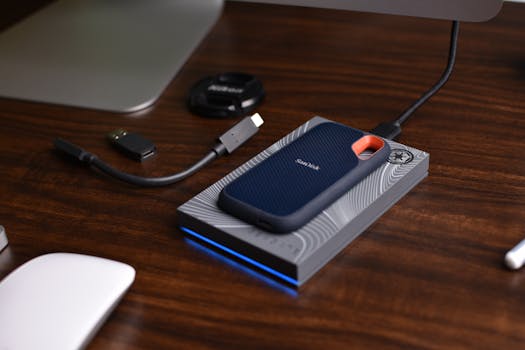 Photo: Avinash Kumar / Pexels
 Photo: Nino Souza / Pexels
 Photo: Кирилл Абрамов / Pexels